
Here’s a guide on how to export your account data on Bybit, which includes trades, orders, activities, and account history. This feature is available for accounts under Identity Verification and Business Verification. Please note that the account data export function is not available on the Bybit app and P2P Order History export function is not covered in this specific guide. For a comprehensive, step-by-step walkthrough on how to download and manage your transaction records, please refer to here.
Types of Account Data
Download Account Data via the Data Export Page
Send Account Statement via the Data Export Page
Download Optional Data
Transaction Log via Unified Trading Account Page
Order History via Unified Trading Order Page
Types of Account Data
There are three different types of account data available for download on Bybit, with each capturing different aspects of trading activities and asset flows. These are namely Account Statement, Transaction Log, and Order History.
Download Account Data via the Data Export Page
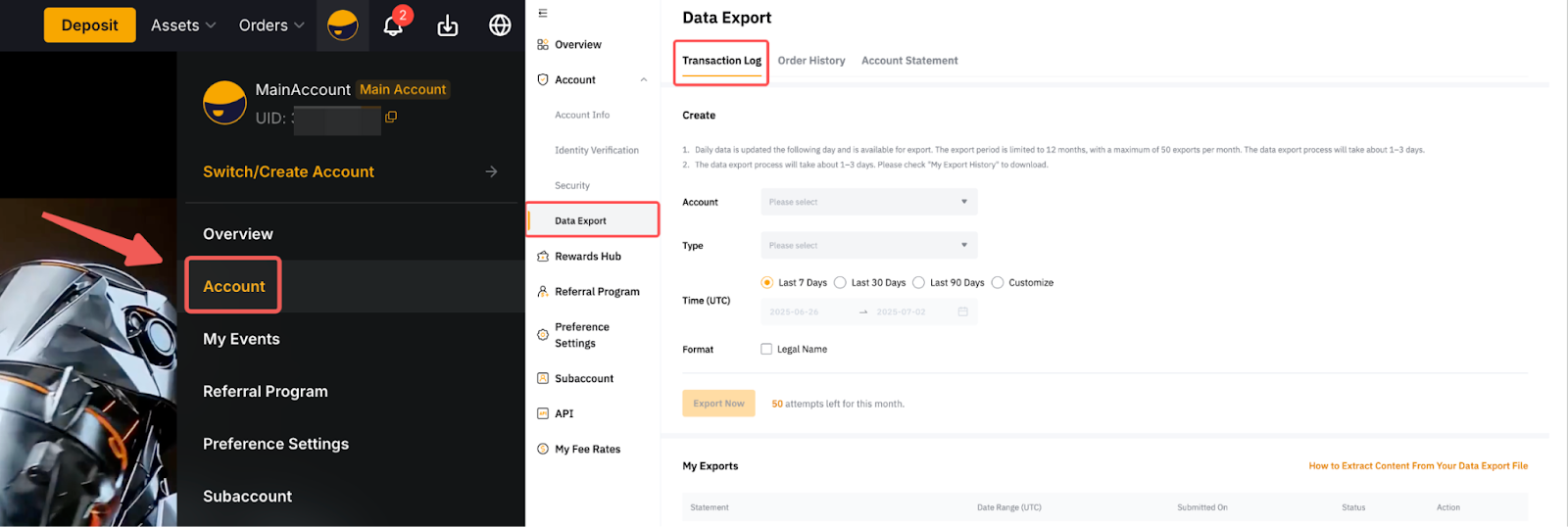
Step 1: On the Bybit Homepage, hover your cursor over your Profile, then go to Account → Data Export.
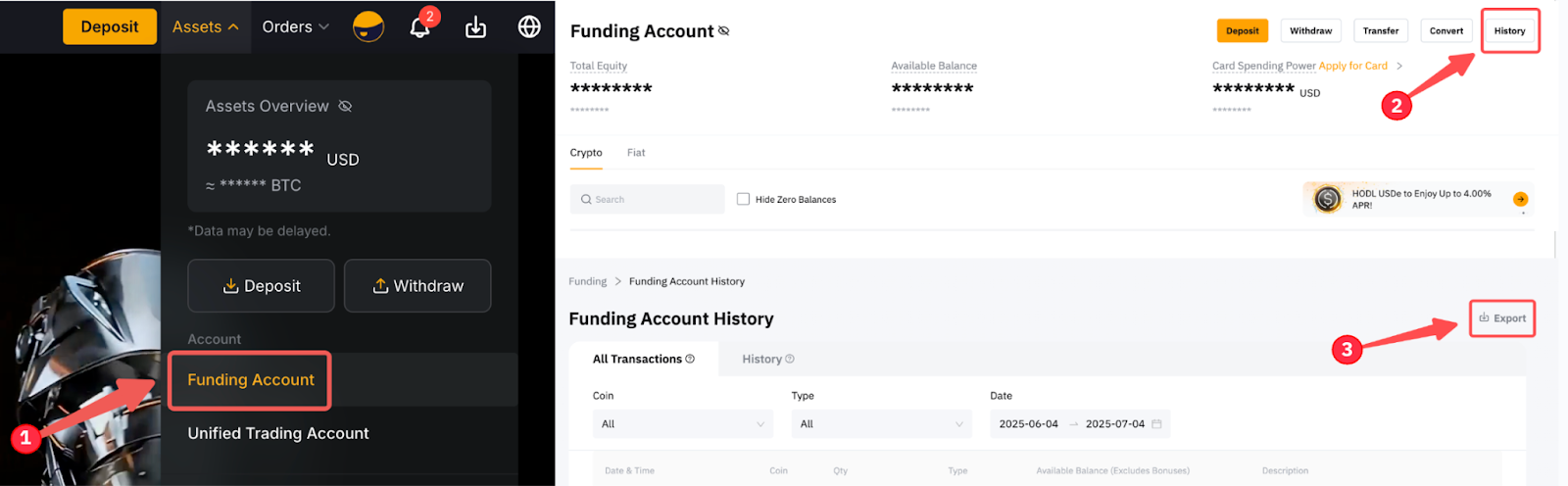
Alternatively, go to Assets → Funding Account → History → Data Export.
Step 2: Once you are on the Data Export page, make the following selections according to the account data you need.
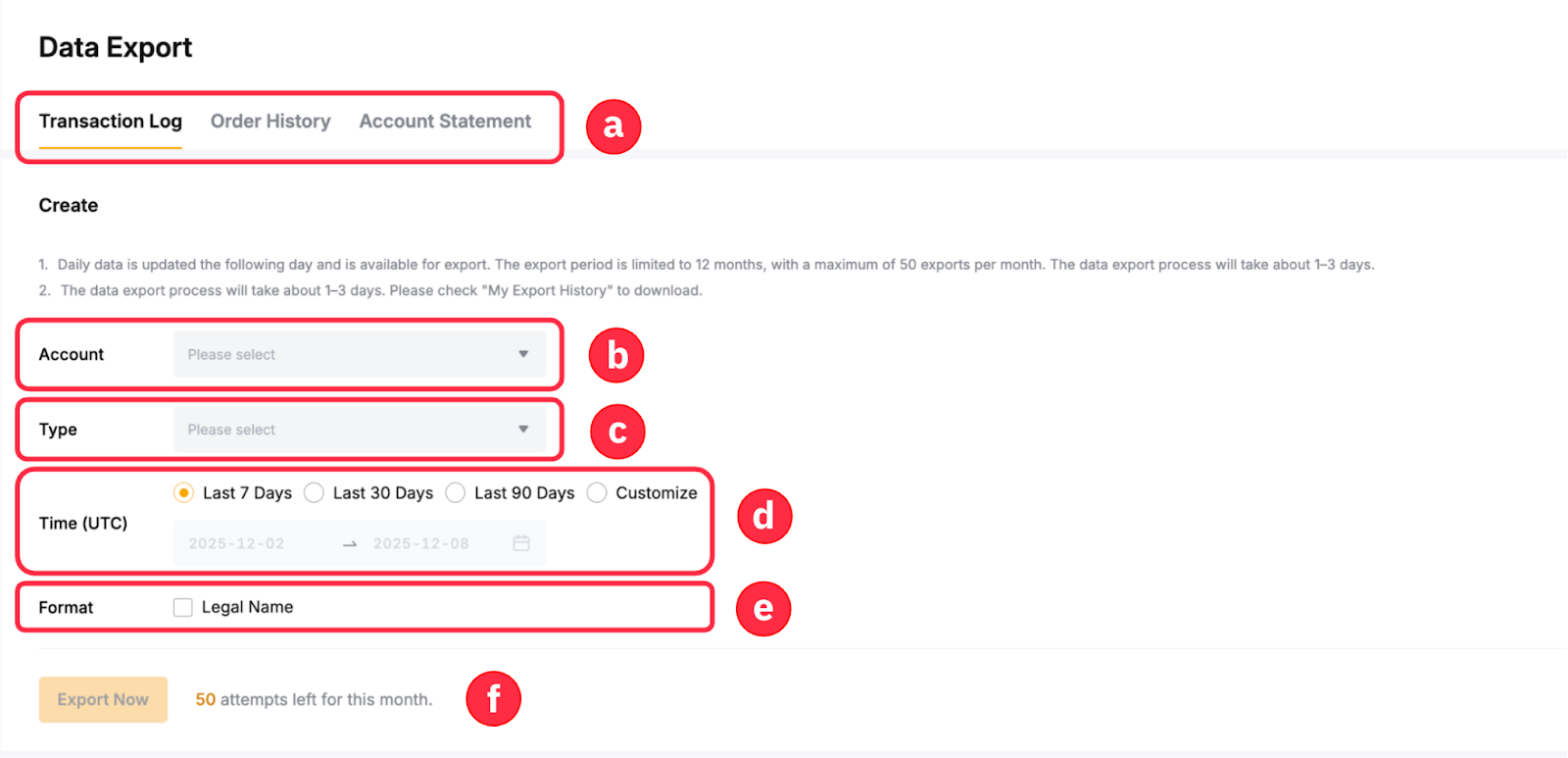
a. Choose the appropriate data types you would like to generate in this column.
b. Batch export for the Main and Subaccounts are now supported, with up to 100 subaccounts available for selection in a single export. Please note, however, that:
- Simultaneous batch export for Main and Subaccounts can only be performed via your Main Account.
- The Subaccount Data Export page only allows data export for the current subaccount.
c. Select the records you wish to include in your statements. They may vary across data types.
d. Select the timeframe for your generated statements here. Choose Customize, if you would like to generate statements from specific periods.
e. By default, the statements only show your Bybit UID. However, you can tick the Legal Name box to include your Identity Verification name in your exported data. If your account is under Business Verification, your Legal Name box will be changed to your Business Verification Name.
f. The generated statements via the Data Export page do not have a limit of data entries.
For more information on the types of available records you can generate in each data type, please refer to the following table:
Step 3: After confirming the selections, simply click on Export Now to generate your data.
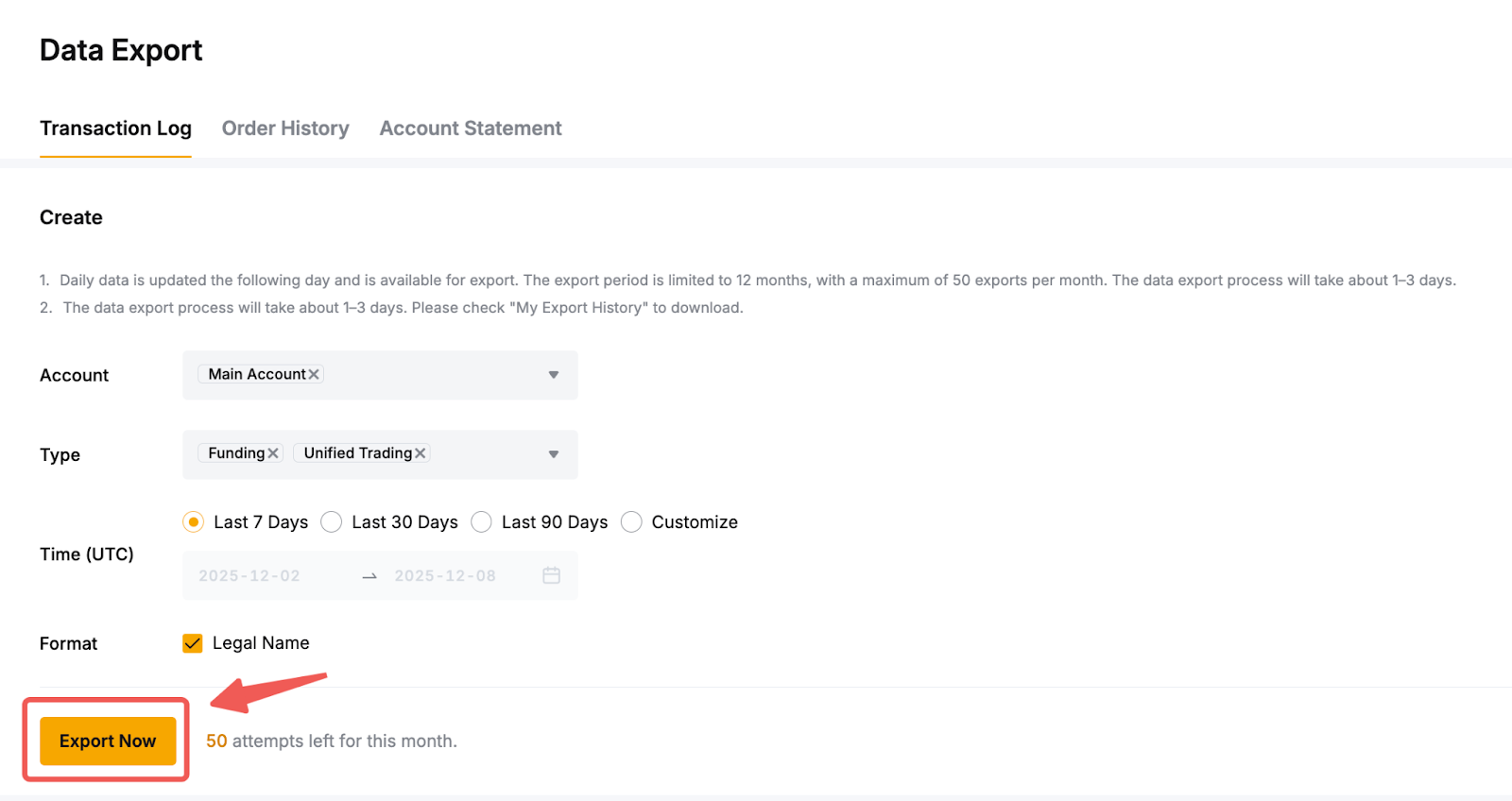
Step 4: Once the file is ready, the status will change to Exported, and the download button will be visible. Additionally, an email will be sent to your registered email address. Click on Download to get your account data.

Notes:
- Transaction Log and Order History will be available in the CSV format, whereas Account Statement will be available in the PDF format. Currently, users cannot change the designated file format for each generated statement.
- Up to three (3) years of recent data can be retrieved. However, the export period is limited to one year (12 months), with a maximum of 50 exports per month for all the data types. For example, if you have requested data export for both Transaction Log and Account Statement, you will have 48 remaining exports within that month.
- The exporting process for Transaction Log and Order History will take about 1-3 days, depending on the file size and duration of the transaction you would like to download. Meanwhile, Account Statement takes approximately one (1) working day to generate.
- Once prepared, the download link will only be valid for seven (7) days, so please download your data file promptly.
- If you encounter issues when extracting the data from the downloaded file, please consult this guide.
Send Account Statement via the Data Export Page
Bybit currently offers a Send feature within the Data Export function. This feature is available only on the Account Statement Page. Please follow the steps below to send your exported account data.
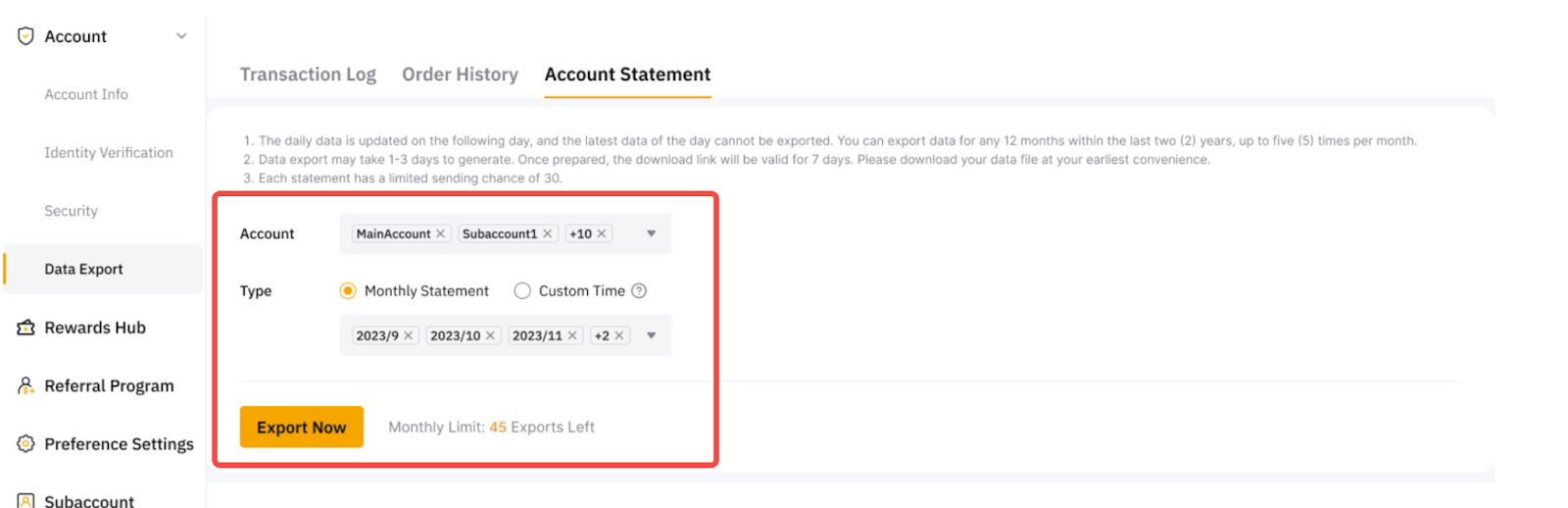
Step 1: Go to the Account Statement page, set your parameters:
- Account: Choose your Main Account and/or Subaccount.
- Type: Select Monthly Statement or Custom Time. Please note that the selected date range follows UTC+0.
After that, click Export Now to continue.
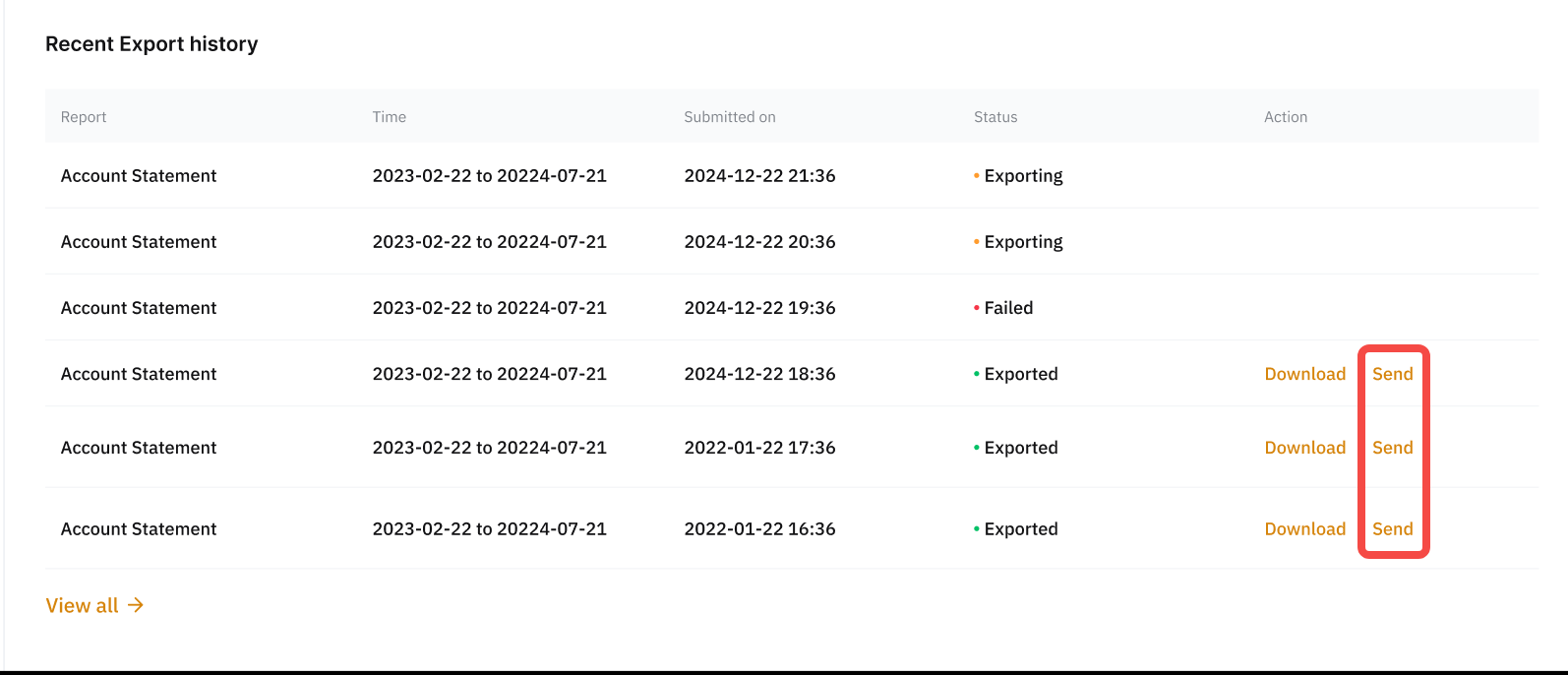
Step 2: Once the file is ready to export, the status will change to Exported, and the Download and Send buttons will become available. An email notification will also be sent to your registered email address. Click Send to continue.
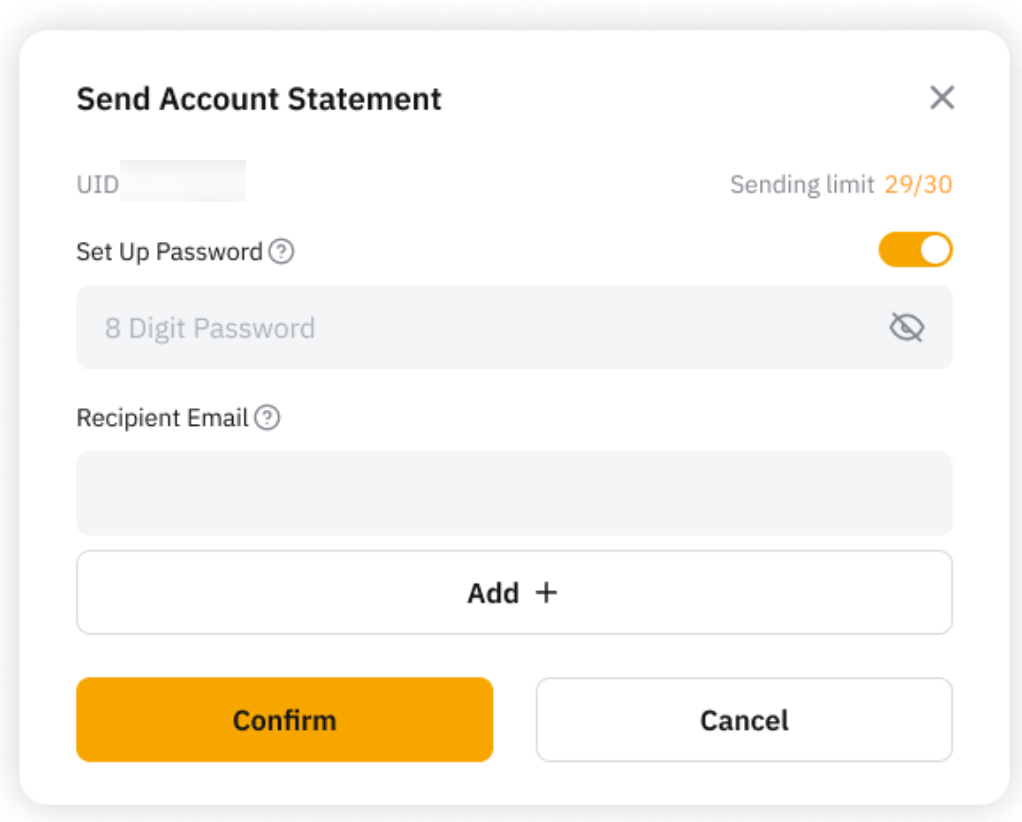
Step 3: Set an 8-digit numeric password and enter the recipient’s email address, then click Confirm to continue.
Notes:
- The password must contain numbers only and cannot include any letters.
- You may enter up to five (5) recipients’ email addresses.
- Each generated account statement can be sent up to thirty (30) times.
- You need to complete 2FA verification before proceeding to send out.
- The recipient will receive an email containing a download link.
- The download link is valid for seven (7) days and will expire after that period.
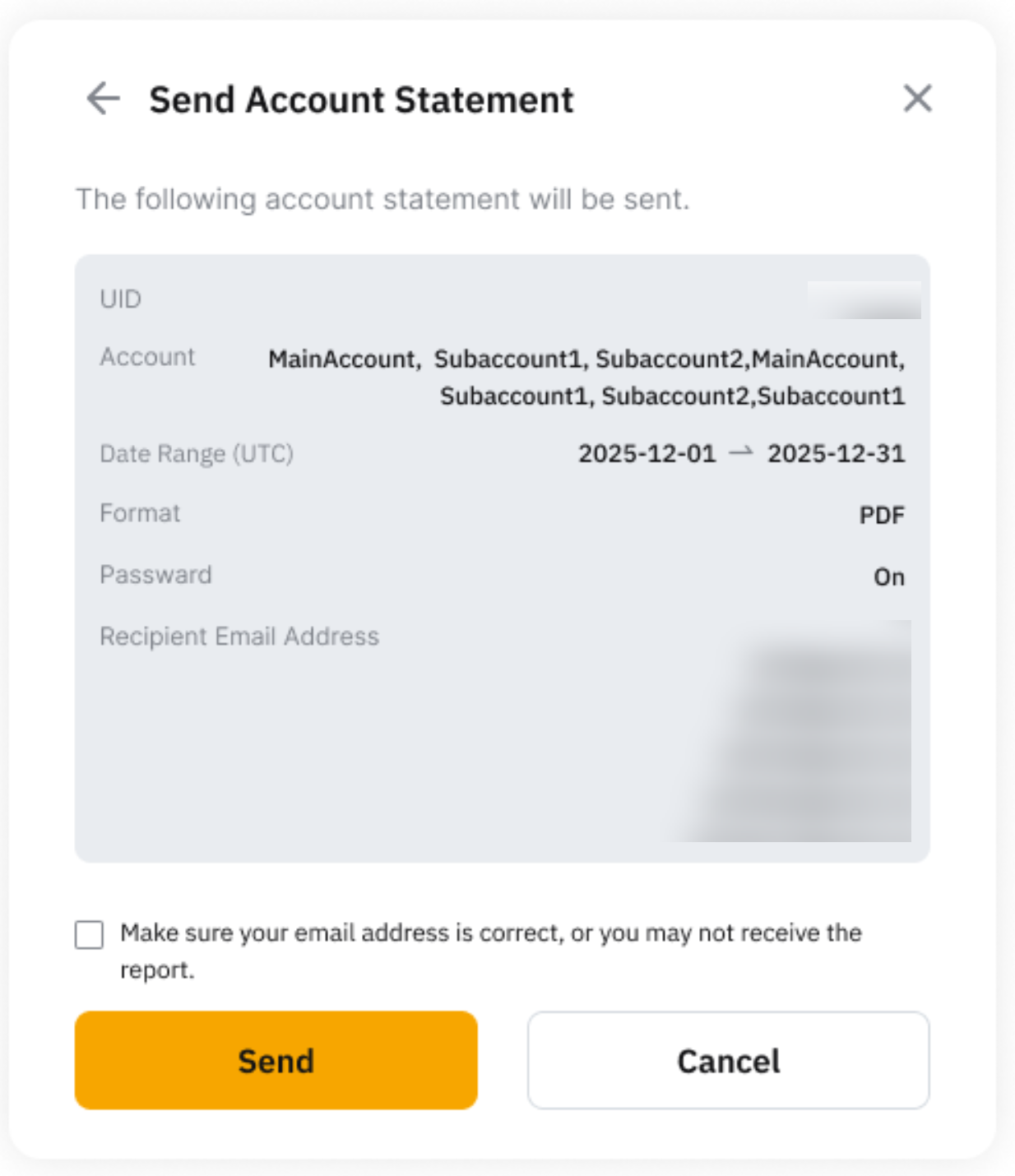
Step 4: Review the Send Account Statement confirmation details and tick the checkbox to acknowledge the report-sending policy. Then, click Send to proceed.
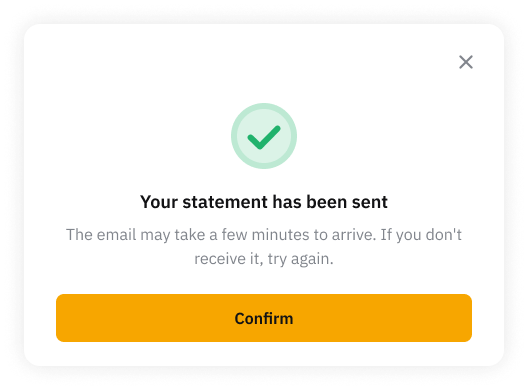
Step 5: Your account statement has been sent successfully. The email may take a few minutes to arrive in the recipient’s email inbox. If the recipient does not receive the email, please try sending it again.
Download Optional Data
Transaction Log via Unified Trading Account Page
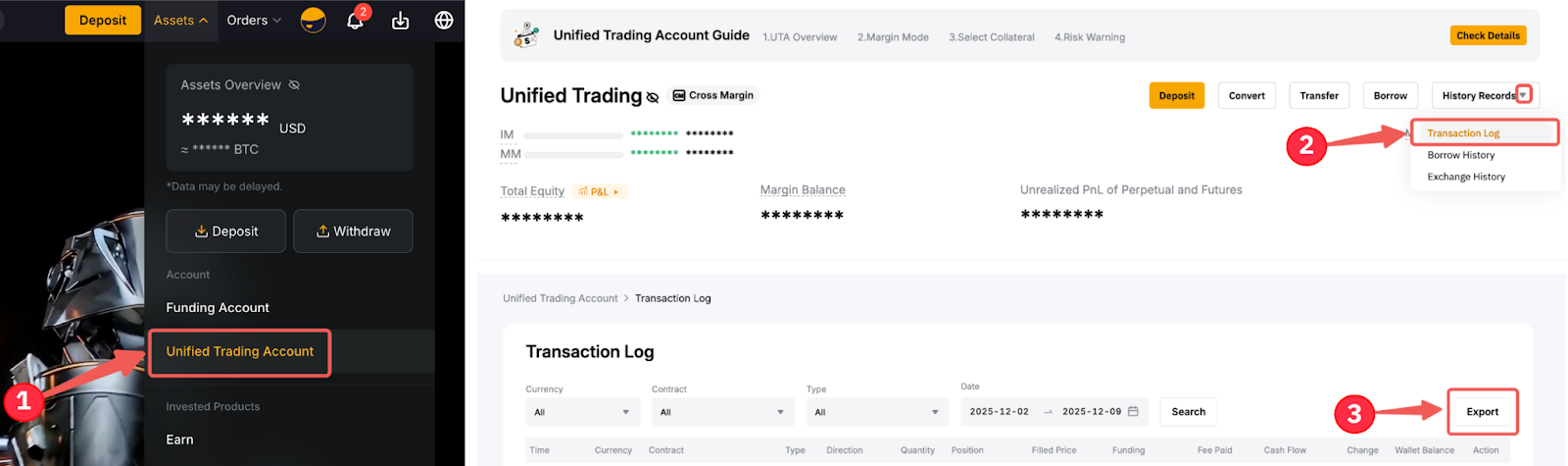
Step 1: You can also export the transaction log via your Unified Trading Account. To do so, go to Assets → Unified Trading Account → History Records → Transaction Log → Export.
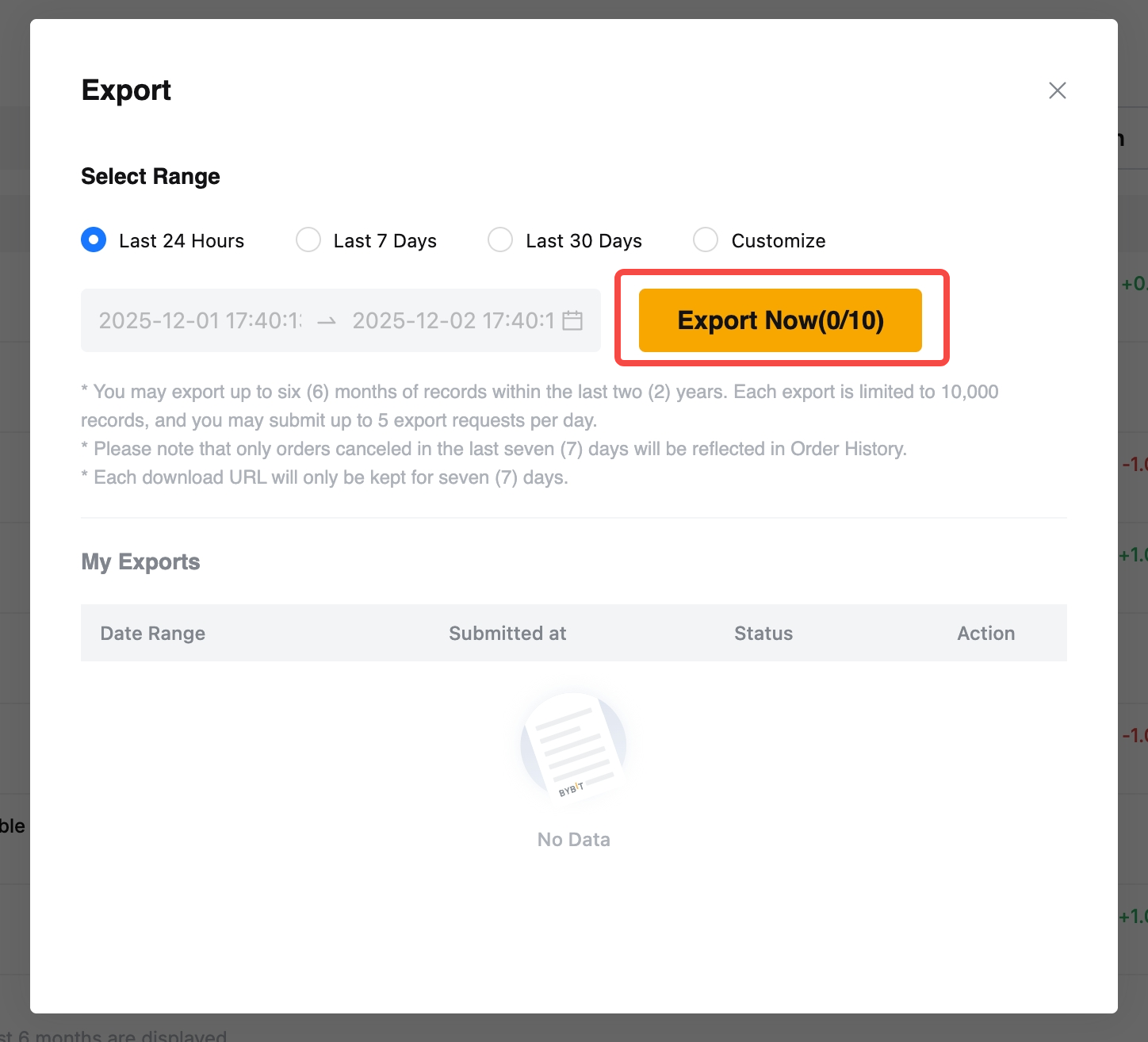
Step 2: In the pop-up window, select the date range for your data and click on Export Now to generate your data export file.
Notes:
- Users may export up to six (6) months of records within the last two (2) years.
- Each export is limited to 10,000 entries, and you may submit up to five (5) export requests per day.
- Each download link will only be valid for seven (7) days.
Order History via Unified Trading Order Page
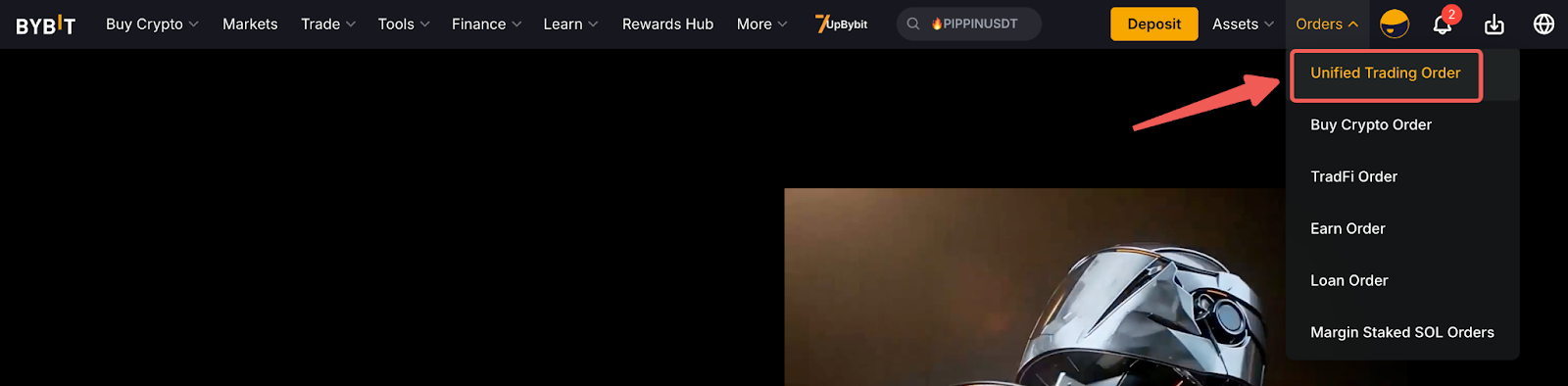
Step 1: To export history data for a particular trading product, go to Orders → Unified Trading Order from the Bybit Homepage.
Step 2: Select the Product History page whose statement you wish to generate, and switch to the relevant history tabs. Then, click on Export.
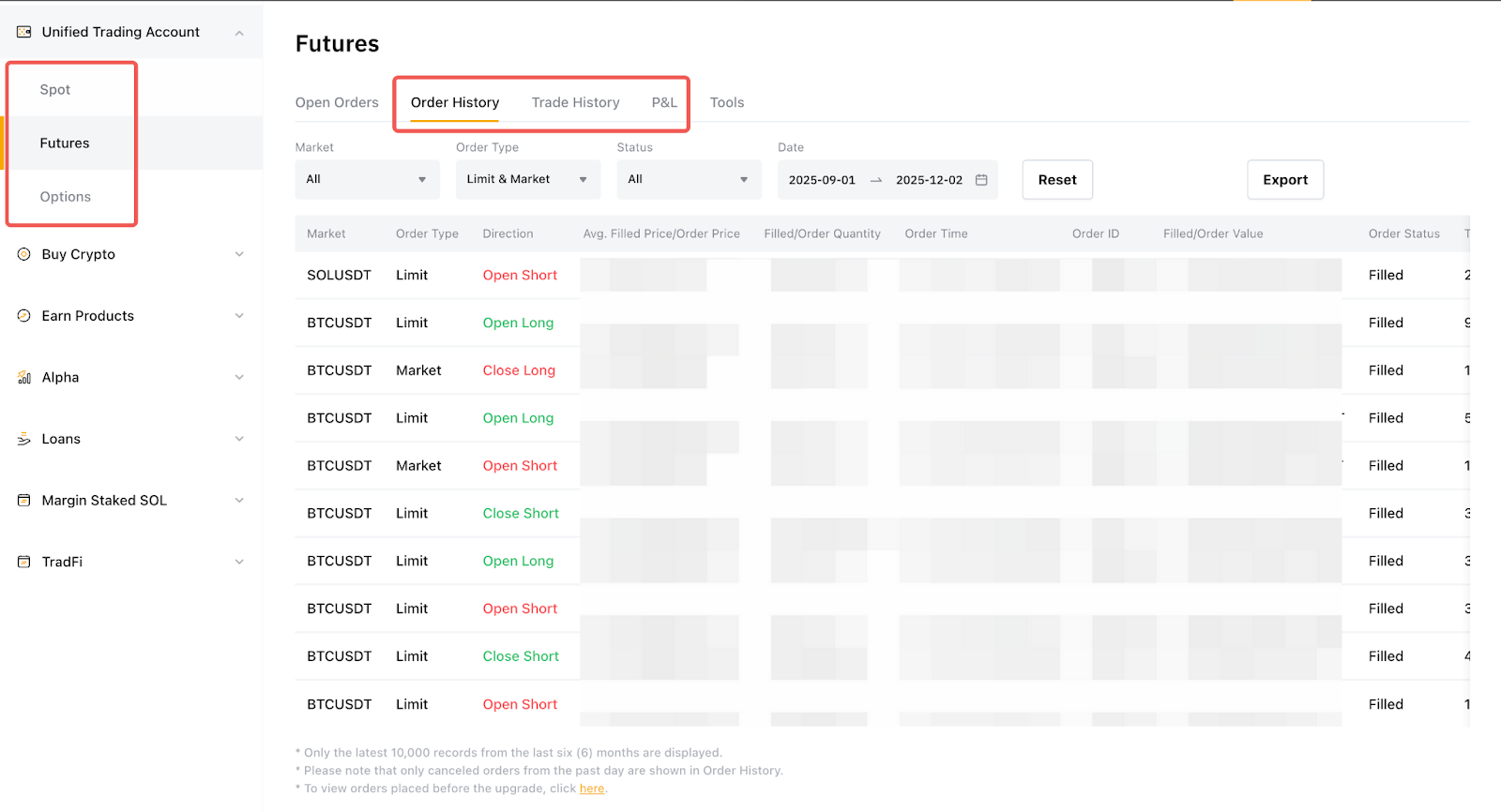
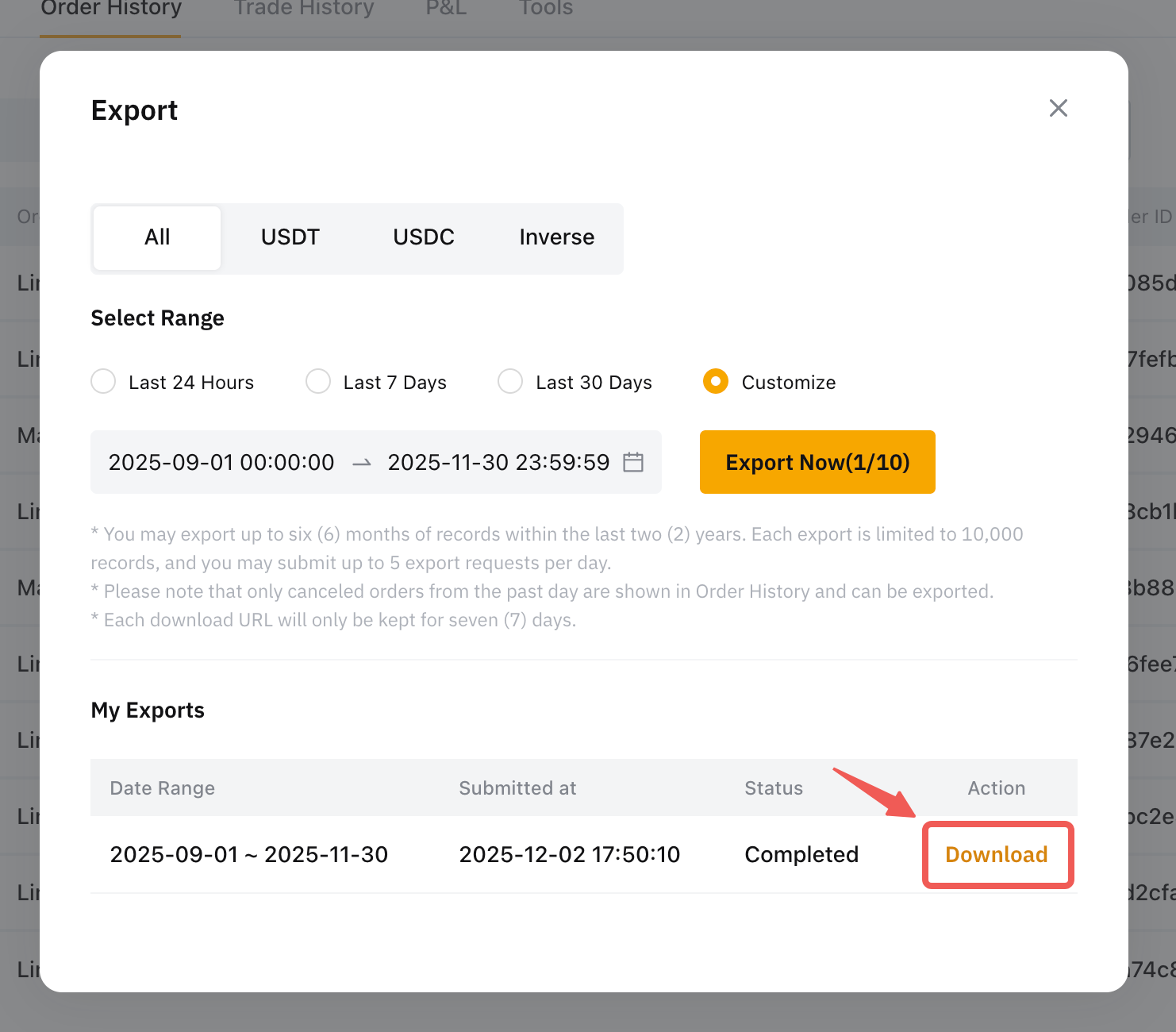
Step 3: This will prompt the Export pop-up window. Select your preferred contract type, if applicable, and time range. Then, click on Export Now to generate your data export file.
Notes:
- Users may export up to six (6) months of records within the last two (2) years.
- Each export is limited to 10,000 entries, and you may submit up to ten (10) export requests per day for Spot Orders and up to five (5) export requests for Derivatives Orders.
- Only canceled orders within the last seven (7) days are reflected and can be exported from the Order History.
- Each download link will only be valid for seven (7) days.